Radio Player
New
| Mod Name | Radio Player |
| Game | Farming Simulator 25 |
| Manufacturer | None |
| Category | Gameplay |
| Author | Dave Rowland |
| Size | 74 KB |
| Version | 1.0.0.0 |
| Release Date | 26.11.2026 |
| Platform | PC/MAC |
Views 4
Downloads 1
ModBarn 0 (0)
ModHub 0.0 (0)
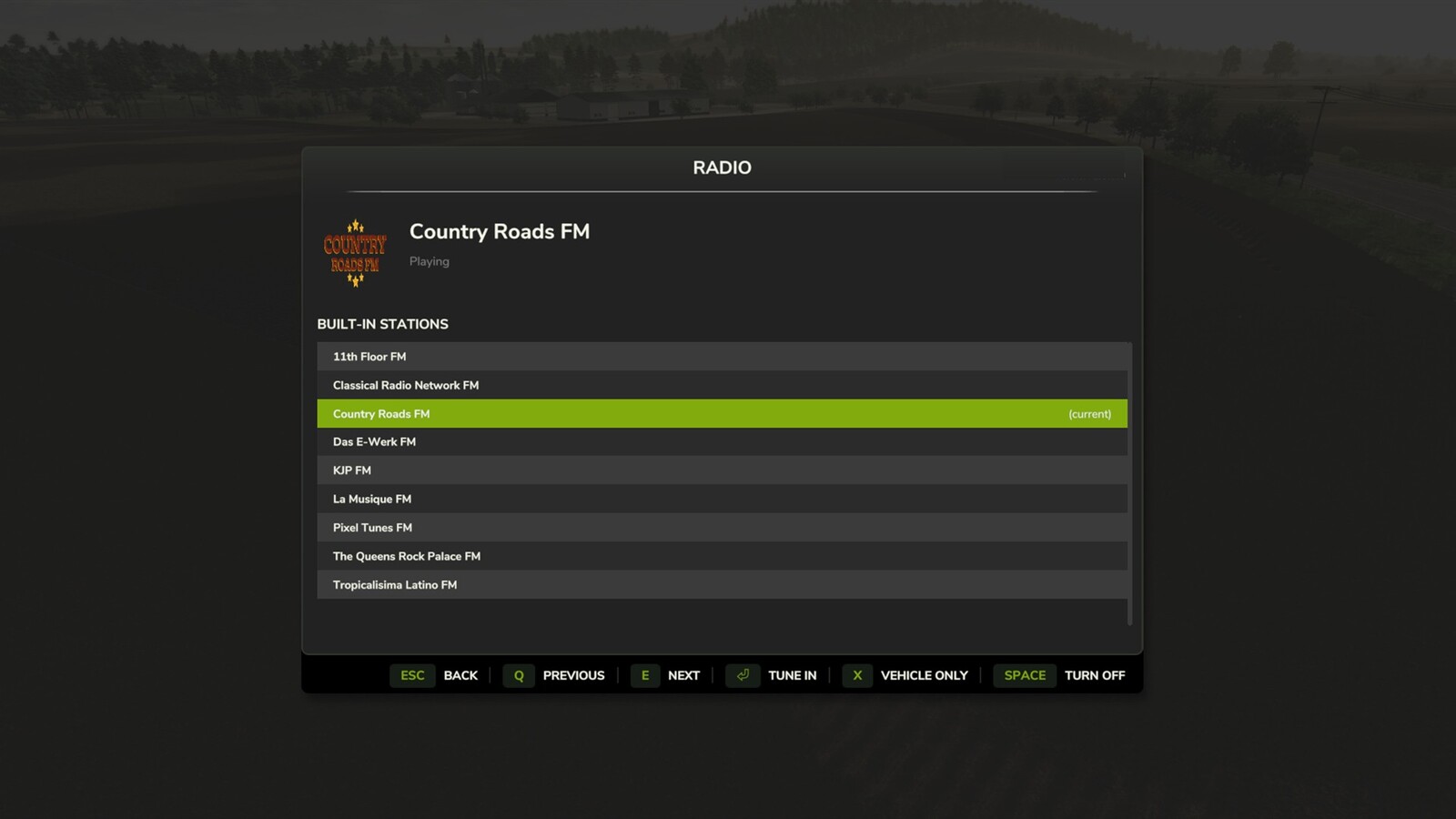
Radio Player adds a simple control panel for the in-game radio. See which station and song are playing, step through the stations, change the volume, or jump straight to the station you want.
Open the panel with Left Alt + 5. The key is listed in the F1 help, and you can change it under Options > Controls, where controller players can also give it a button. The panel works on foot and in vehicles.
The panel shows:
- The station you are listening to, with its logo for the built-in stations
- The song that is playing, when the game provides it
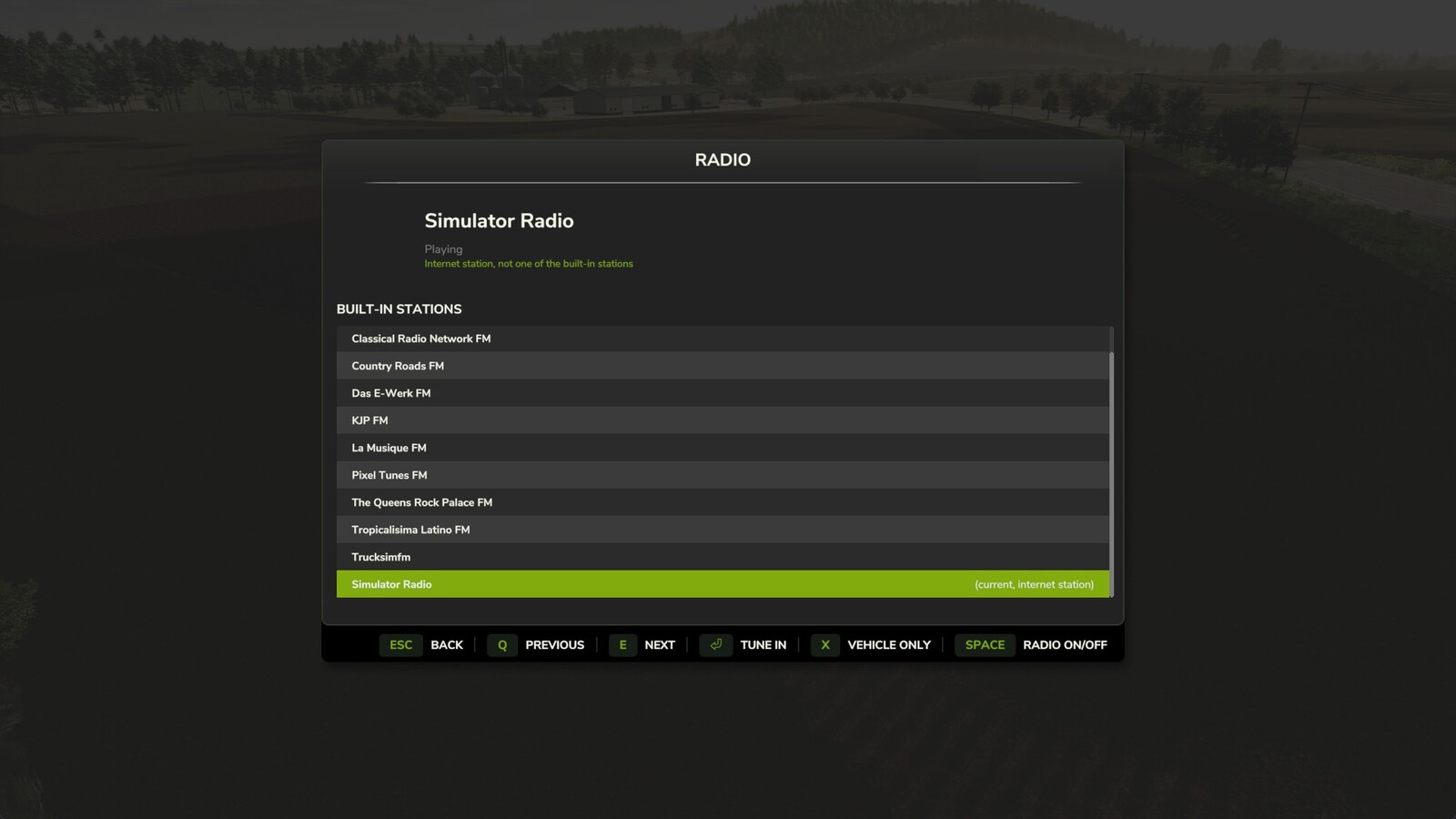
- The game's built-in stations in alphabetical order, with the current one highlighted
- Whether the radio is playing, switched off, or set to play in vehicles only
Controls in the panel (the key or controller button for each is shown next to it):
- Previous / Next: step through all stations. The built-in stations come first (A to Z), then the others.
- Tune In, or double-click a station: jump straight to that station
- Volume - / +: change the radio volume (click with the mouse)
- Play Everywhere / Vehicle Only: choose whether the radio also plays on foot. This is the same as the game's Radio setting.
- Radio On/Off: switch the radio on or off, the same as the game's radio key
- Back: close the panel
Mini player:
Press Left Alt + 6 to show or hide a small player on screen, like the AutoDrive and Courseplay HUDs. It shows the station logo, the station and the song, with Previous, On/Off and Next buttons. To click them, show the mouse cursor: with the game's own cursor (middle mouse button in vehicles) or with Left Alt + 7. With the cursor showing you can also drag the player to where you want it. It remembers whether it is shown and where.
Internet stations and your own music:
Besides the built-in stations, Farming Simulator 25 plays a list of internet radio stations, plus any music or stations you add yourself (see ReadmeMusic.txt in the music folder of your game's user folder). Previous and Next step through them and the panel shows their name. Each one you listen to is added to the list below the built-in stations and remembered for next time, so you can jump back to it with Tune In.
Adding your own stations:
You can add any internet radio station that offers a direct stream address. Open the music folder in your game's user folder (Documents > My Games > FarmingSimulator2025 > music) and add a line for each station to streamingInternetRadios.xml, for example:
Addresses ending in .mp3, .aac, .m3u or .pls work best. Music apps with their own player usually don't offer such addresses; many stations do on their own website. The game's ReadmeMusic.txt in the same folder explains it, including how to add your own music files. Restart the game afterwards. Your stations then appear on the radio, and in Radio Player with their names.
Unreachable stations:
Internet stations are sometimes offline. If a station has not connected after 8 seconds, the panel shows "Station not responding", and Previous and Next skip it for the rest of the game session. The game may keep trying to connect for a few more seconds, so switching away can take a moment, and some offline stations can make the game pause briefly while it tries. This comes from the game's radio, not from this mod.
Your station is saved with your game:
When you save, the station you are listening to is saved with that savegame. When you load it again, the radio tunes back to it as soon as it starts playing.
Notes:
- The game's own radio keys still work as usual and follow the game's station order.
- Works in multiplayer. Each player controls their own radio; nothing is shared with other players.
Suggested Mods

Ratings & Reviews
0
0 reviews
| 5 stars | ||
| 4 stars | ||
| 3 stars | ||
| 2 stars | ||
| 1 stars |
| Login above to Rate & Review this. Let us know what you think! |
| No Ratings & Reviews Yet. Be the first to leave a Rating & Review! |